Connect to Odoo instances
Generate your SSH key and authorize it on Odoo.sh or Shoovels so Claudioo can reach live customer instances.
To let Claudioo reach a customer's live Odoo, every consultant generates their own SSH key inside Claudioo and authorizes it on the hosting platform. Once that's done, you can use /remote-ops in any session against any project whose instances are configured.
Who does what?
Generating your SSH key is a personal task — every consultant who needs to connect makes their own. Authorizing it on the hosting platform (the second half of this page) is straightforward on Shoovels. On Odoo.sh it goes through your GitHub account, which is a bit more involved — if that part is unfamiliar, ask your project's tech owner to walk you through it once.
Setup
Generate an SSH key
Go to Settings → SSH Keys and click Add SSH Key.
Claudioo generates a secure key pair for you. The private key is stored securely — you never see it or need to manage it.
Give your key a descriptive name (e.g. "Odoo.sh staging", "Shoovels prod").
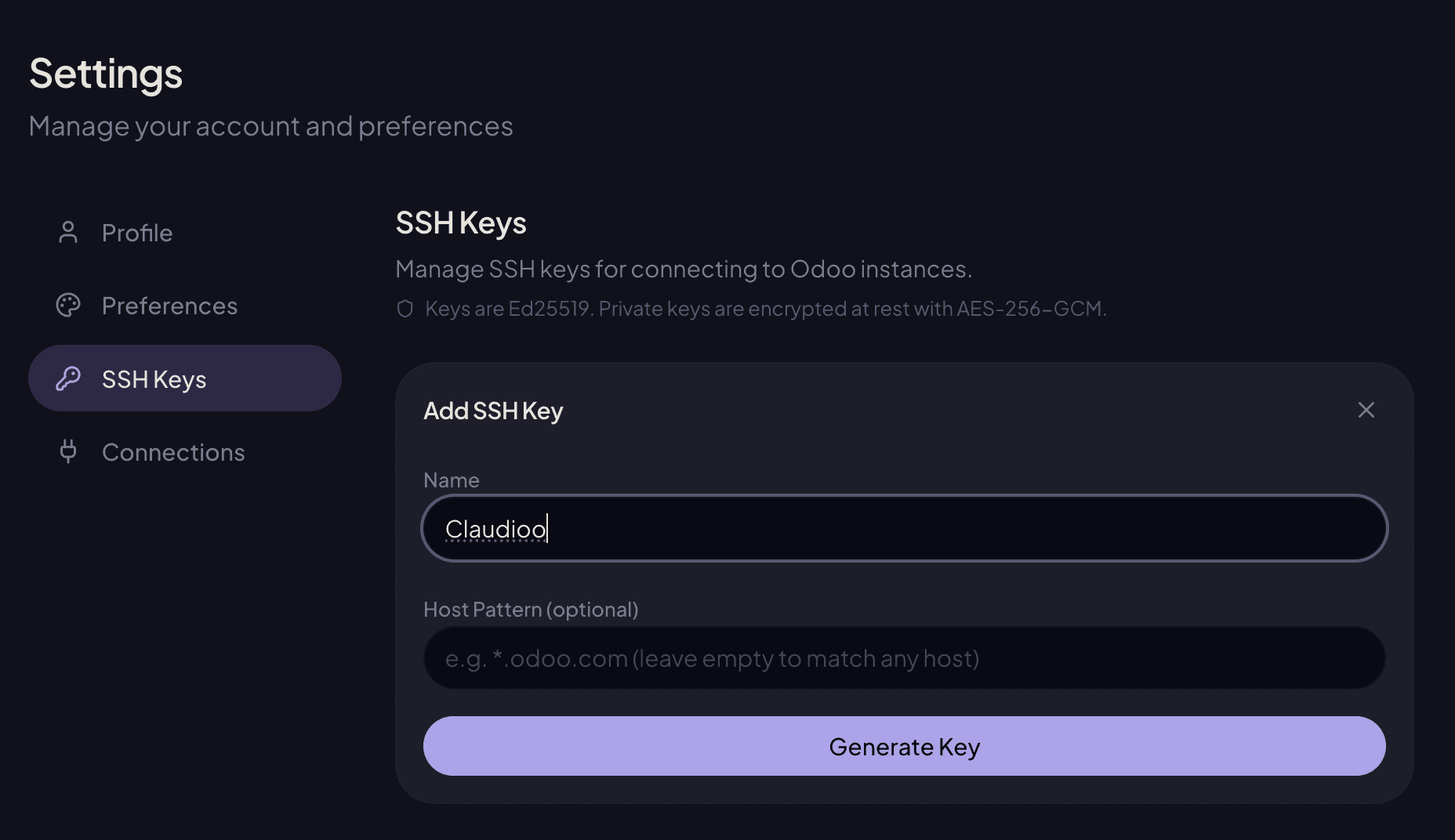
Restrict the key to specific hosts (optional)
By default the key works against any host you authorize it on. Skip this section unless you want to scope a key to a single platform — for example, a separate key per customer.
| Pattern | Matches |
|---|---|
| (empty) | Any host — use this if in doubt |
*.odoo.com | All Odoo.sh builds |
staging.example.com | Exact hostname only |
Claudioo matches the pattern against the hostname when you connect with /remote-ops.
Authorize the key on your hosting platform
After adding the key, expand it to copy your public key. Then authorize it on your hosting platform:
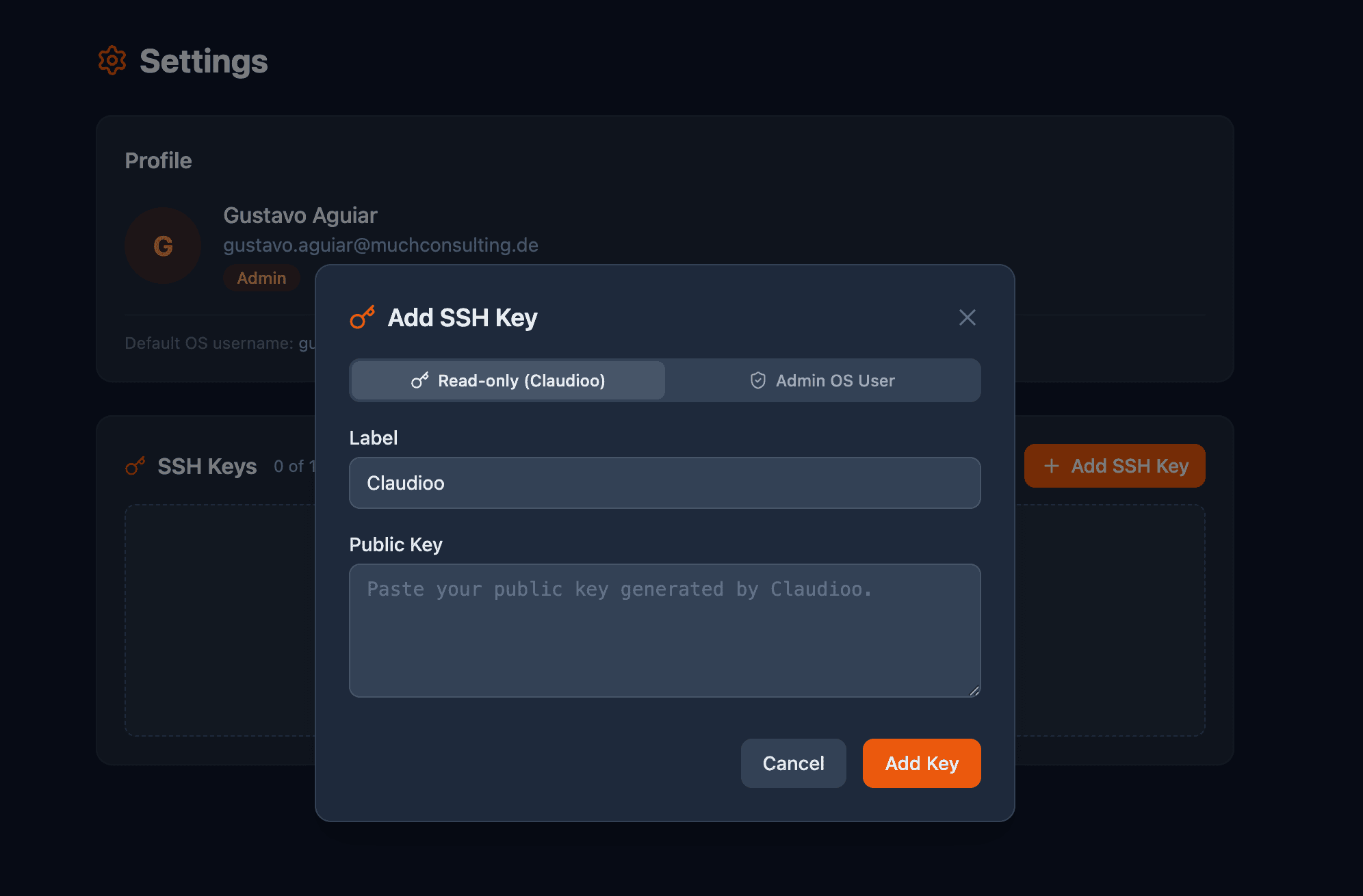
- Go to app.shoovels.com/settings → SSH Keys → + Add SSH Key
- Set the Label to "Claudioo" and paste your public key
- If you're a Shoovels Admin, you'll see an access-tier picker — leave it on Read-only (Claudioo) unless you specifically need write access. Developer-role users won't see this picker; keys are always registered as Read-only (Claudioo).
- Click Add Key
Keys are deployed to every instance you have access to within 2–3 minutes. Any new instances you get access to in the future will automatically receive your key.
Shoovels assigns each user an access tier — either admin (full access) or read-only (limited to viewing logs, reading code, and SELECT-only database queries). Most users are read-only by default; only Shoovels admins can grant a key full access. Claudioo automatically detects your key's tier when connecting.
- Add the public key to your GitHub account at github.com/settings/keys → New SSH key:
- Title: Claudioo
- Key type: Authentication Key
- Key: paste the public key from Claudioo
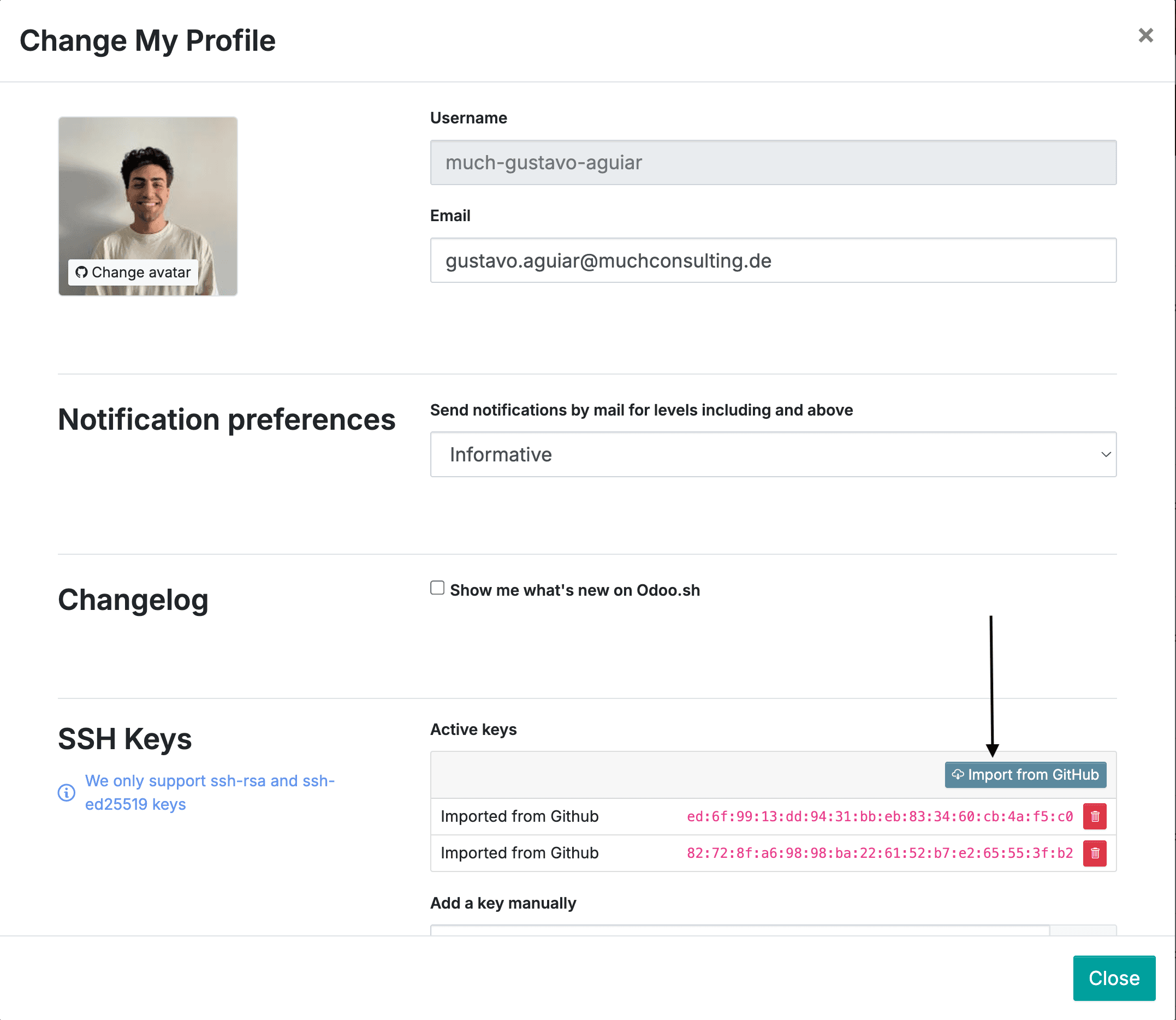
- Import into Odoo.sh → open any project on odoo.sh → click your username (top-right) → Profile → SSH Keys → Import from GitHub
Both steps are required. Odoo.sh authenticates via keys imported from your GitHub account.
Using it
In any session, type:
/remote-opsClaudioo asks which instance you want to connect to, matches it against your configured SSH keys, and establishes the connection. From there, ask questions like "show me the last 50 lines of the Odoo log" or "how many sale orders were created today?" — see Work with a live Odoo instance for more.
Safety note
Claudioo only connects to servers you've authorized your SSH key on. It cannot connect to arbitrary servers or use keys you haven't explicitly provided. All connections use your own credentials.
Supported platforms
- Odoo.sh — Odoo's cloud hosting platform
- Shoovels — Odoo deployment and hosting platform
See Project instances for how connection strings are configured at the project level.
Learn more
- Project instances — Per-project instance configuration (tech owner)
- Work with a live Odoo instance — What you do with
/remote-ops - Safety and privacy — What Claudioo can and can't do over SSH