Connect to Slack
Connect Slack so Claudioo can search channel messages during your conversations.
Claudioo can read your Slack — channel history, threads, search — so you can ask it things like "what did we decide about the migration in #project-x?" without leaving the conversation. It only sees what you can see in Slack, and it can never post or change anything.
Connect a workspace
Go to Settings → Connections and find the Slack card.
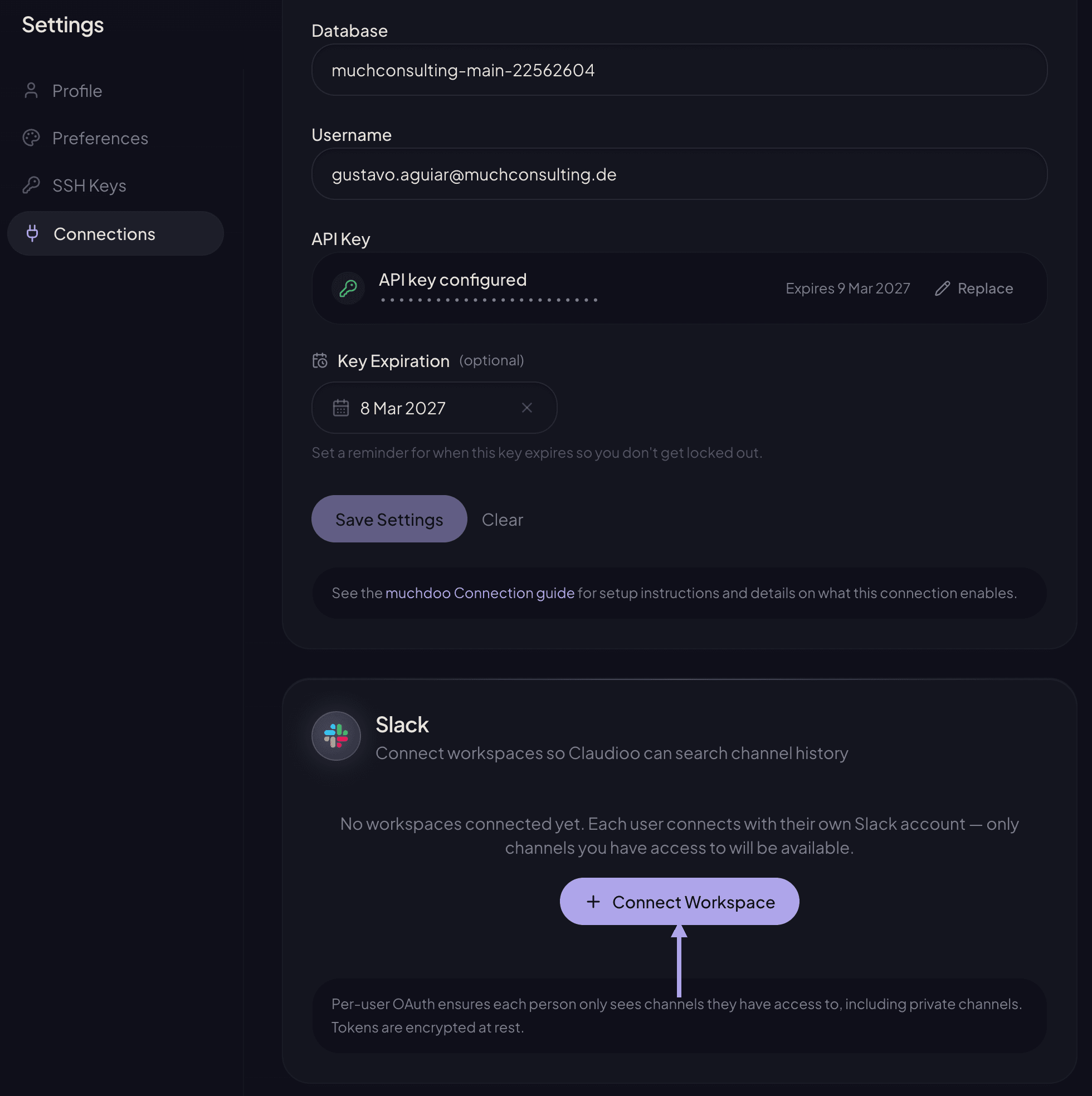
Click Connect Workspace
Claudioo redirects you to Slack.
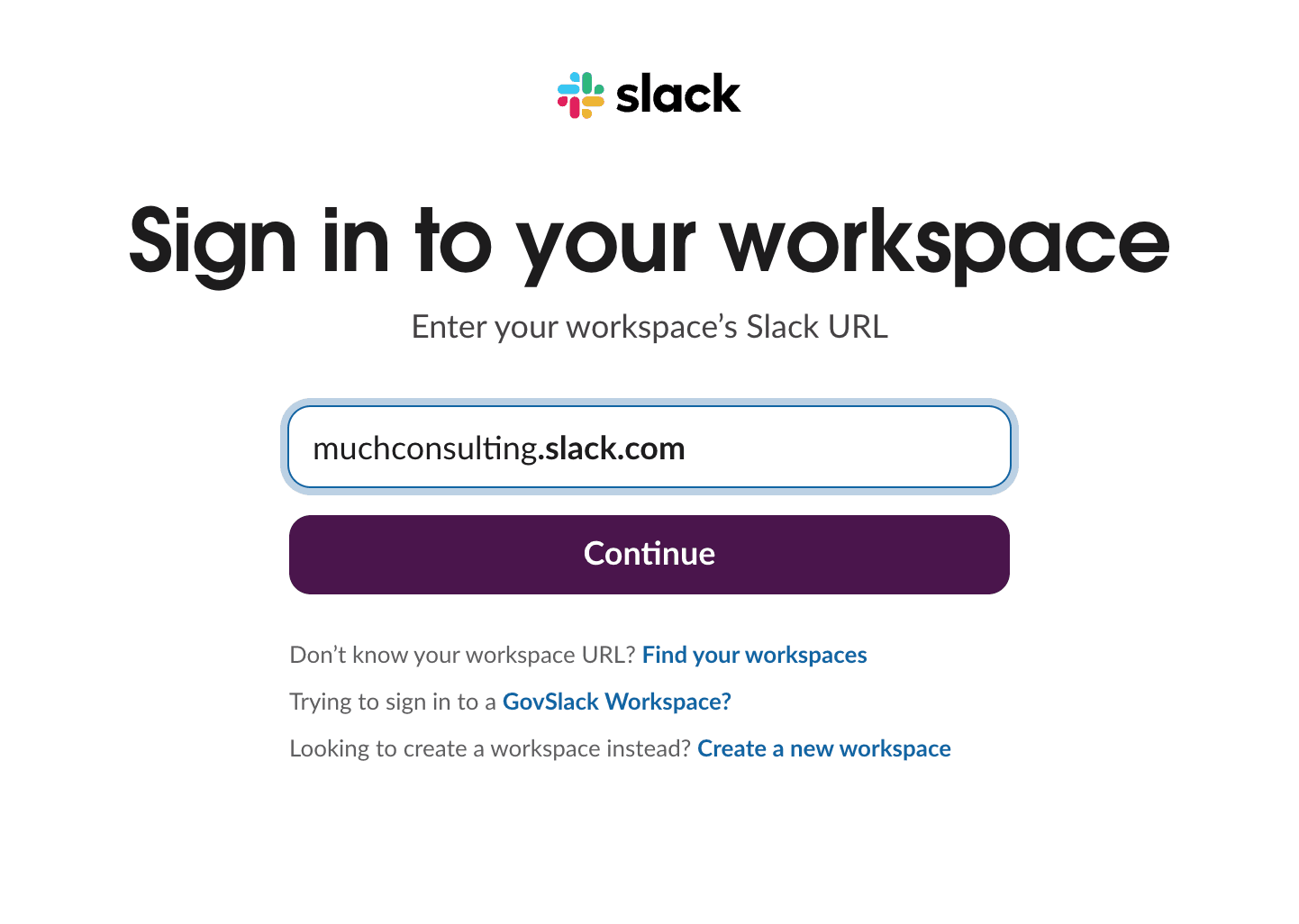
Sign in to your Slack workspace
If you're already signed in to Slack in this browser, Slack skips this and the next screen.
Otherwise enter muchconsulting.slack.com and click Continue.
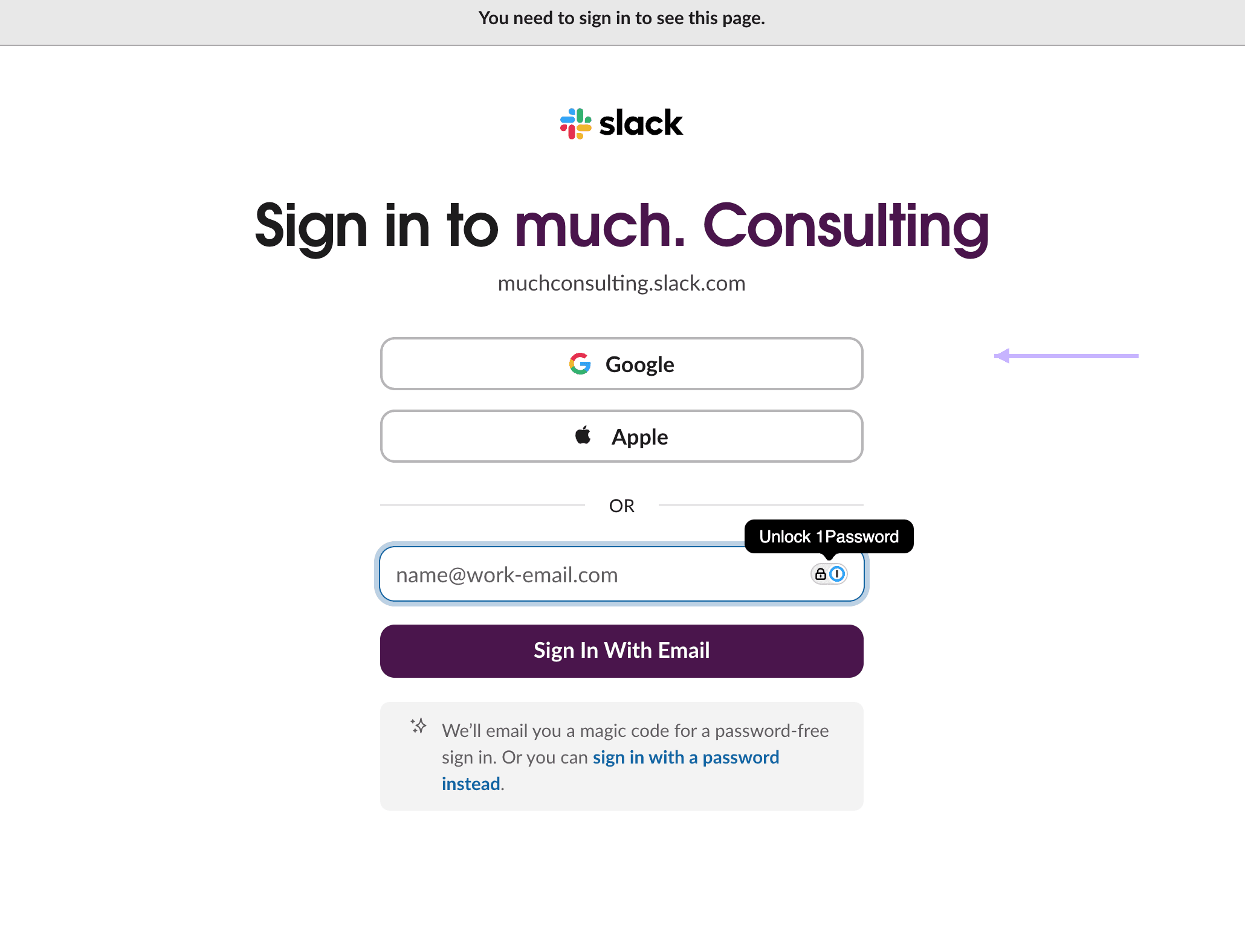
Continue with Google
much. accounts use Google SSO — click Google and pick your @muchconsulting.de account.
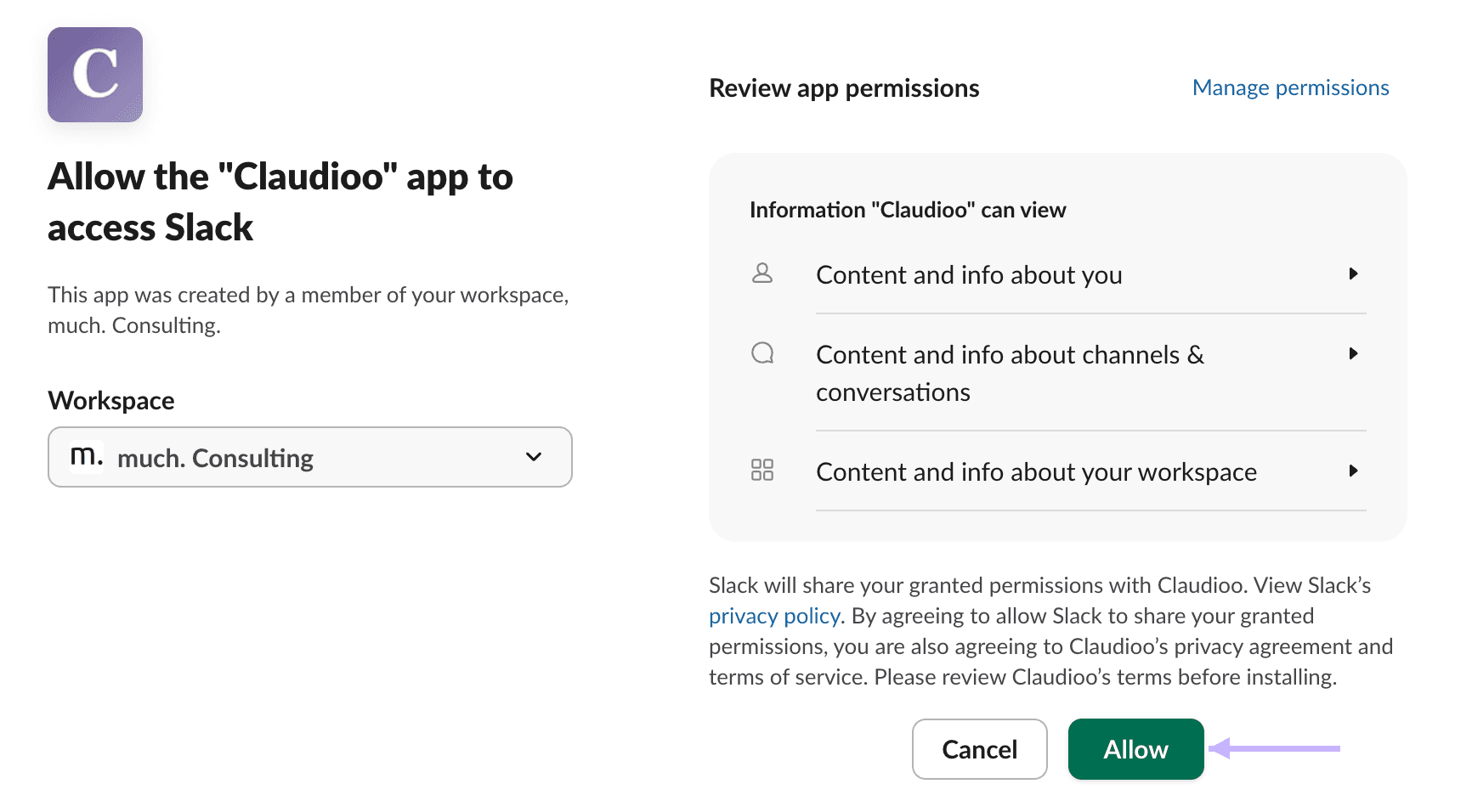
Authorize on Slack
Slack shows you exactly what Claudioo is asking for. It's all read-only — no posting, no editing, no DMs. Pick the workspace you want to connect (top-right) and click Allow.
You're connected
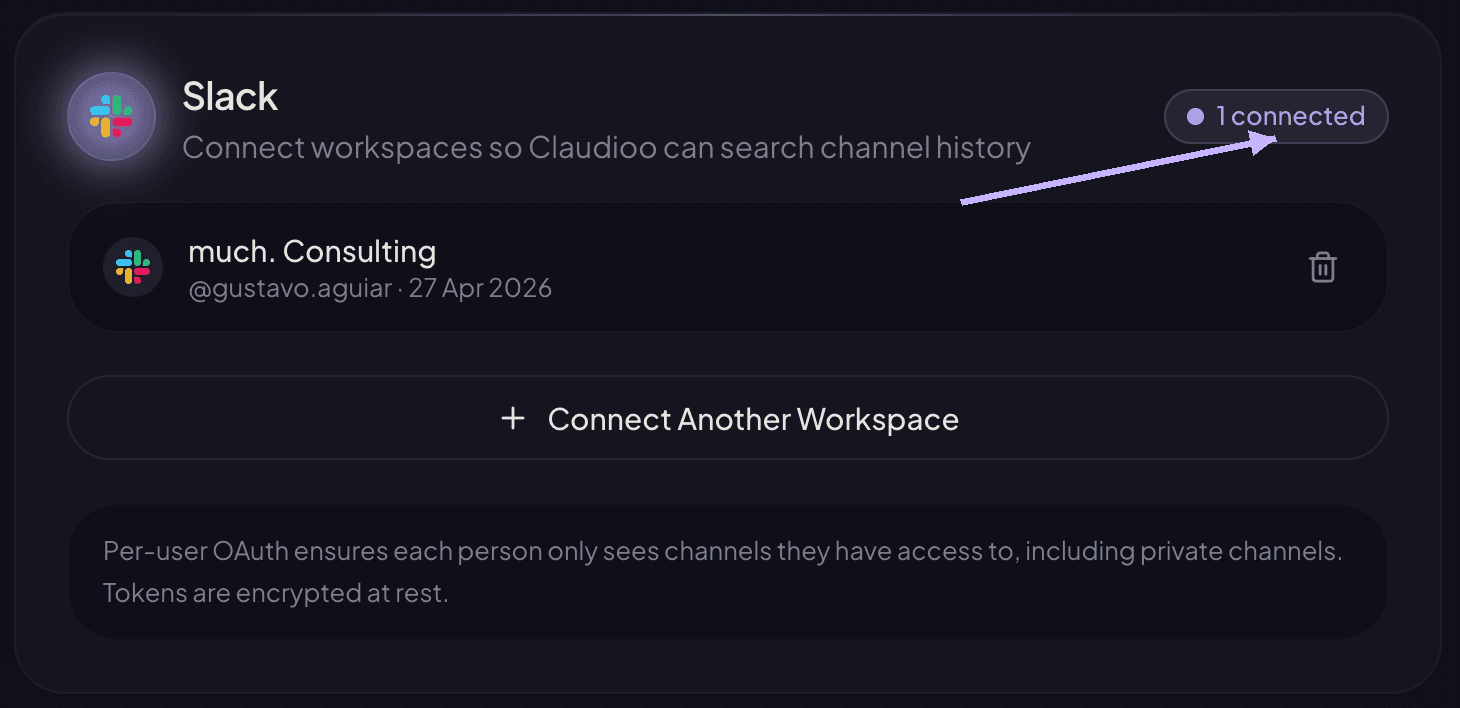
Back in Claudioo, your workspace appears with your Slack username and the date you connected. You can connect more than one workspace if you're in multiple — just click Connect Another Workspace.
Link a project channel
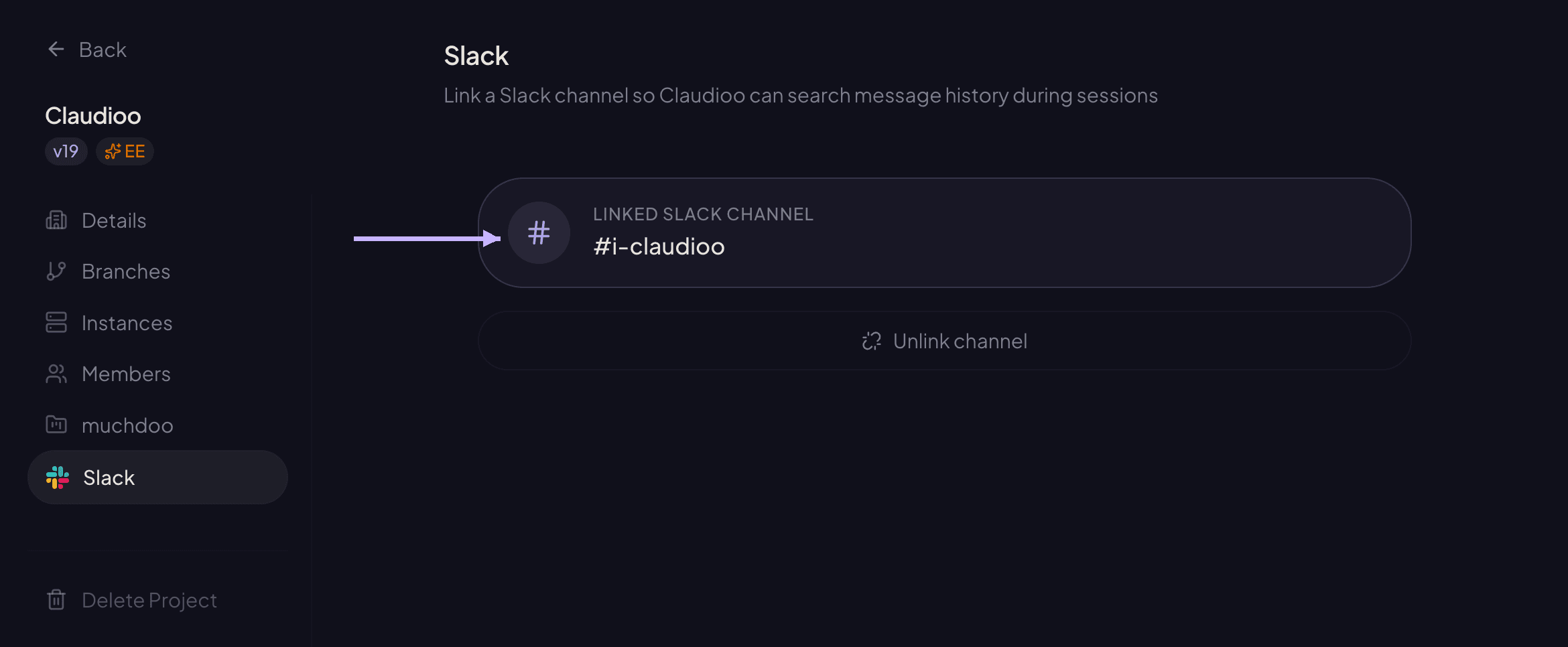
Linking a Slack channel to a project tells Claudioo "this is where the team talks about this." When you open a session under that project, Claudioo searches the linked channel by default.
You need at least one Slack workspace connected first, and you need to be a project editor to link or unlink the channel.
Open Project Settings → Slack
From the project, click the settings icon and switch to the Slack tab.
Pick the channel
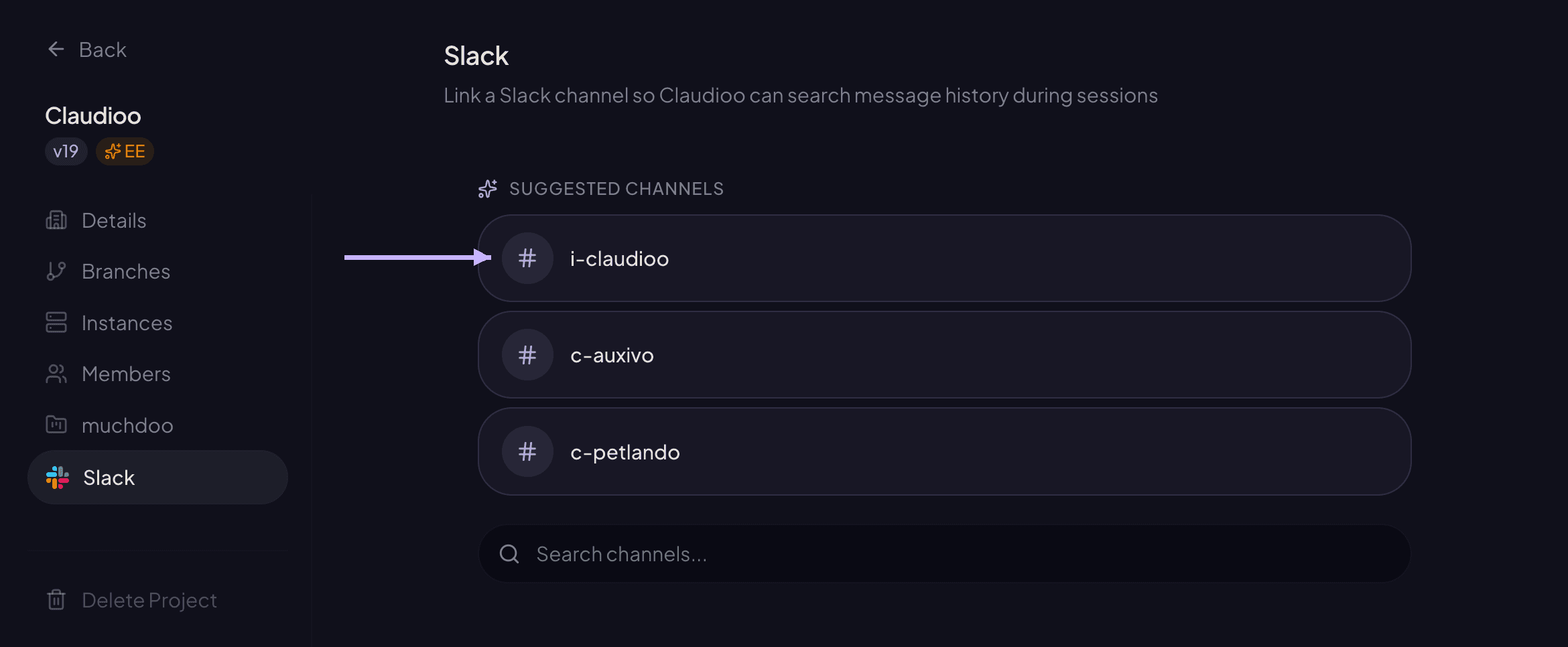
Claudioo suggests the closest matches by name. Search across every channel you have access to in Slack — public or private. Each channel shows its member count and a lock icon for private channels.
What this enables
Once connected, Claudioo can use Slack during your conversations:
- Search Slack — "what was the conclusion on X?", "who pinged me about Y last week?"
- Read specific threads — paste a Slack link and Claudioo can read it
- Look up people — find a team member's Slack profile
Read-only, always. Claudioo cannot post, edit, delete, or DM. You can verify this on Slack's authorization screen — no write permissions are requested.
A few things to know
- Each person connects their own Slack. Linking your project to
#foodoesn't grant access to teammates — each member connects their own Slack and sees the same channels they can see in the Slack app: every public channel in the workspace, plus the private channels and DMs they're in. - Disconnecting removes Claudioo's access. If you reconnect the same workspace later, your project links come back automatically.
- "Reconnect required" appears if your token gets revoked — for example, the Claudioo app was removed from the Slack workspace, or you revoked it in Slack. Click Reconnect to re-authorize.
- Slack not available? If Connect Workspace shows an error instead of opening Slack, Slack hasn't been enabled for your workspace yet — ask in
#i-claudioo.
Learn more
- Search Slack — How to phrase Slack questions
- Projects — Linking projects to Slack channels and muchdoo